I cannot select my 360° media on iOS
Try the following things :
- Ensure that you granted ReShoot 360 to access your medias, check in iOS settings “Settings > Privacy > Photos > ReShoot 360”.
- Disable “360°” filter in the top-right menu.
If you still cannot select your 360° media, you can copy your media directly in ReShoot 360 app folder, here are 2 solutions to do it from your iOS device or from your Mac.
Solution 1 : Copy your 360° media from your iPhone or iPad
- Go finding your 360° media with your camera app or with Photos app.
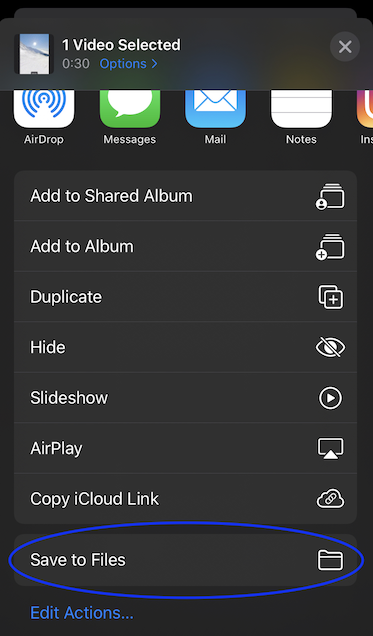
- Use “Share” button
 and select “Save to Files” (scroll down if you don’t see it).
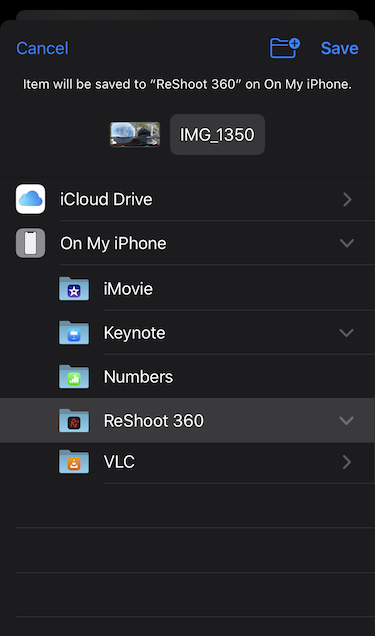
 - Select “On My iPhone > ReShoot 360” and click “Save“.
Restart a scan and your 360° media should appear on top of the list.
Solution 2 : Copy your 360° media from your Mac
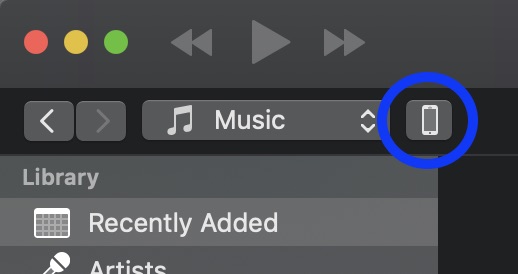
- Connect your iOS device to your Mac with USB and open iTunes.
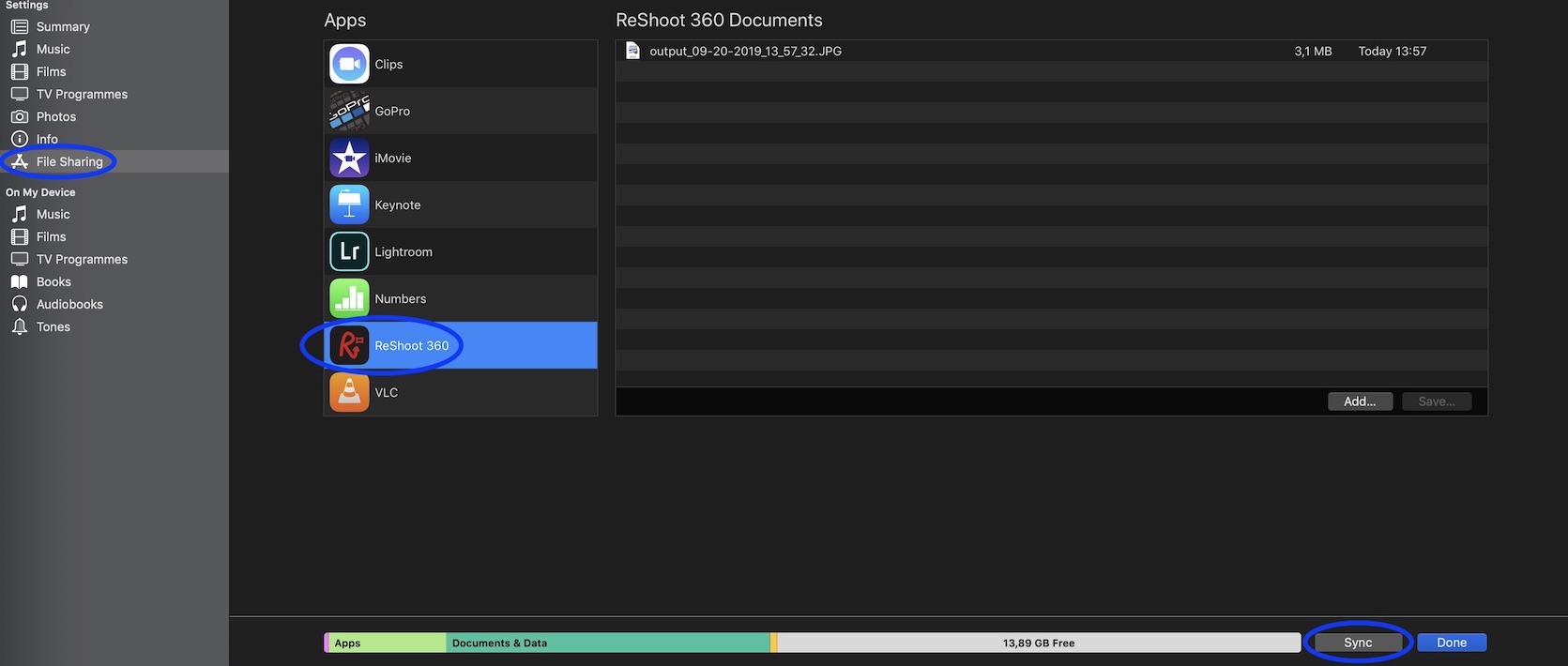
- In the top-left corner, click on the phone button, select “File Sharing” in the left pane, select “ReShoot 360” in the “Apps” list.
- Then you will see the list of “ReShoot 360 Documents”, drag and drop your 360° media here or click on the button “Add…”.
- Once it is done, ensure to click on “Sync” button at the bottom-right corner, and then click on “Done” button.
Restart a scan and your 360° media should appear on top of the list.