Video editor tutorial
Use the video editor to create a video from a 360 photo or a 360 video. Control the video flow by adding keyframes. Customize transitions between keyframes. Add special effects to your video.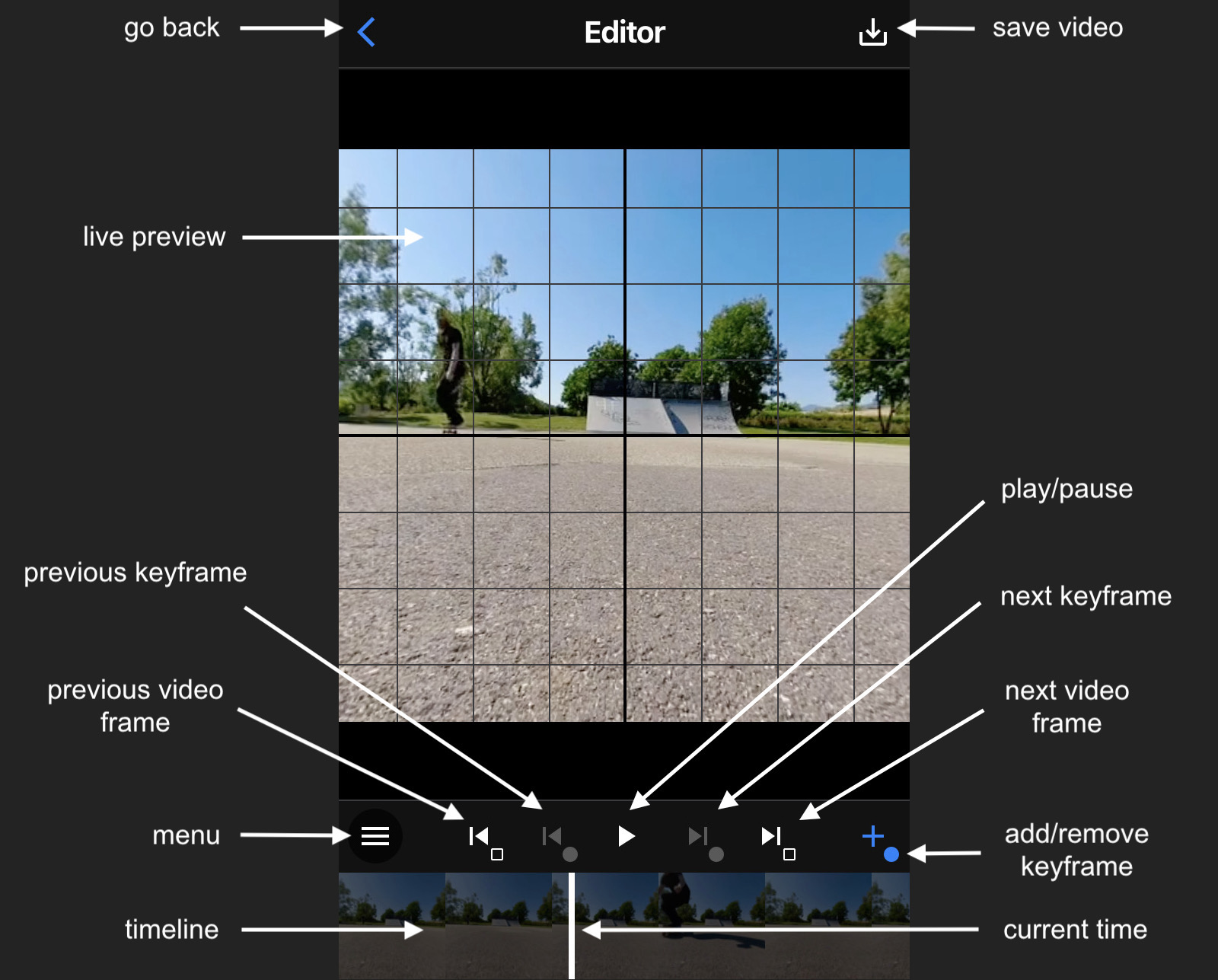
Timeline
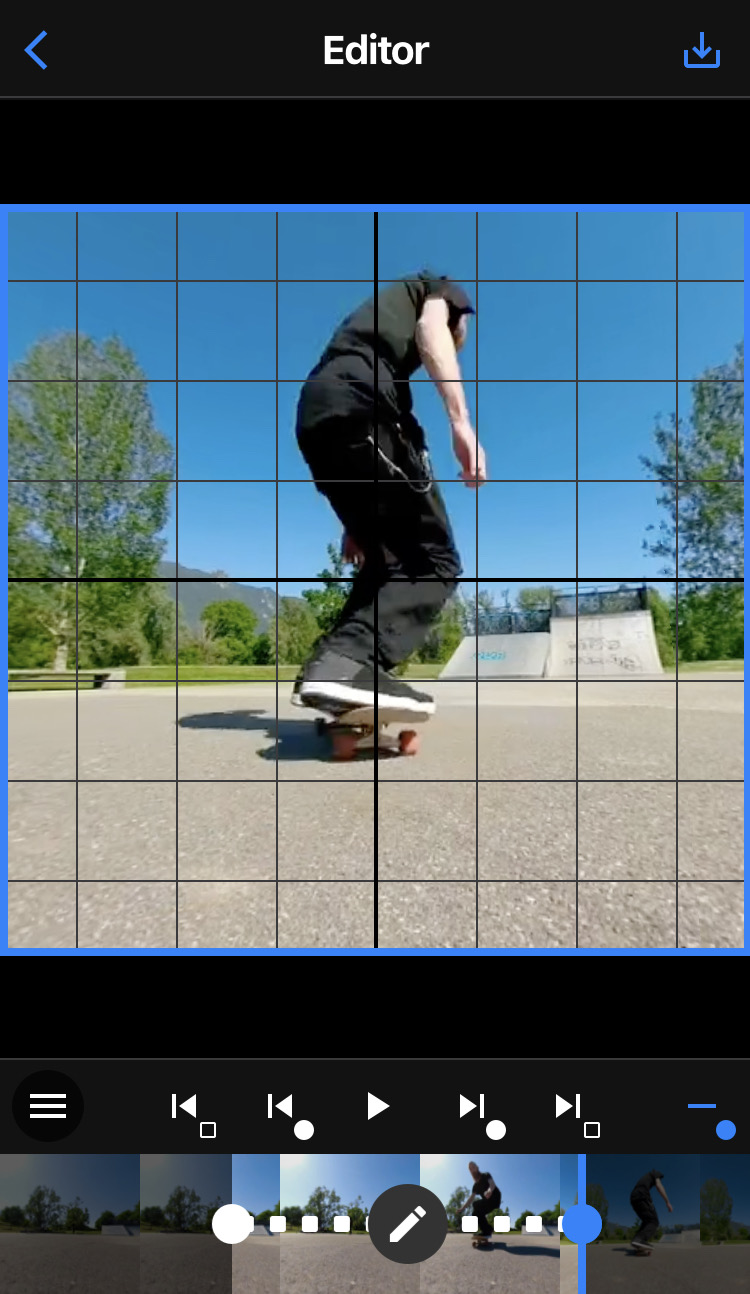
The timeline shows thumbnails of your video editing.
Tap anywhere in the timeline to change the video current time. You can also drag the current time bar to change the video current time.
Change the timeline zoom by using zoom buttons in menu.
Change the thumbnail width by pinching in the thumbnail.
Keyframes
Add a first keyframe to start your video flow.
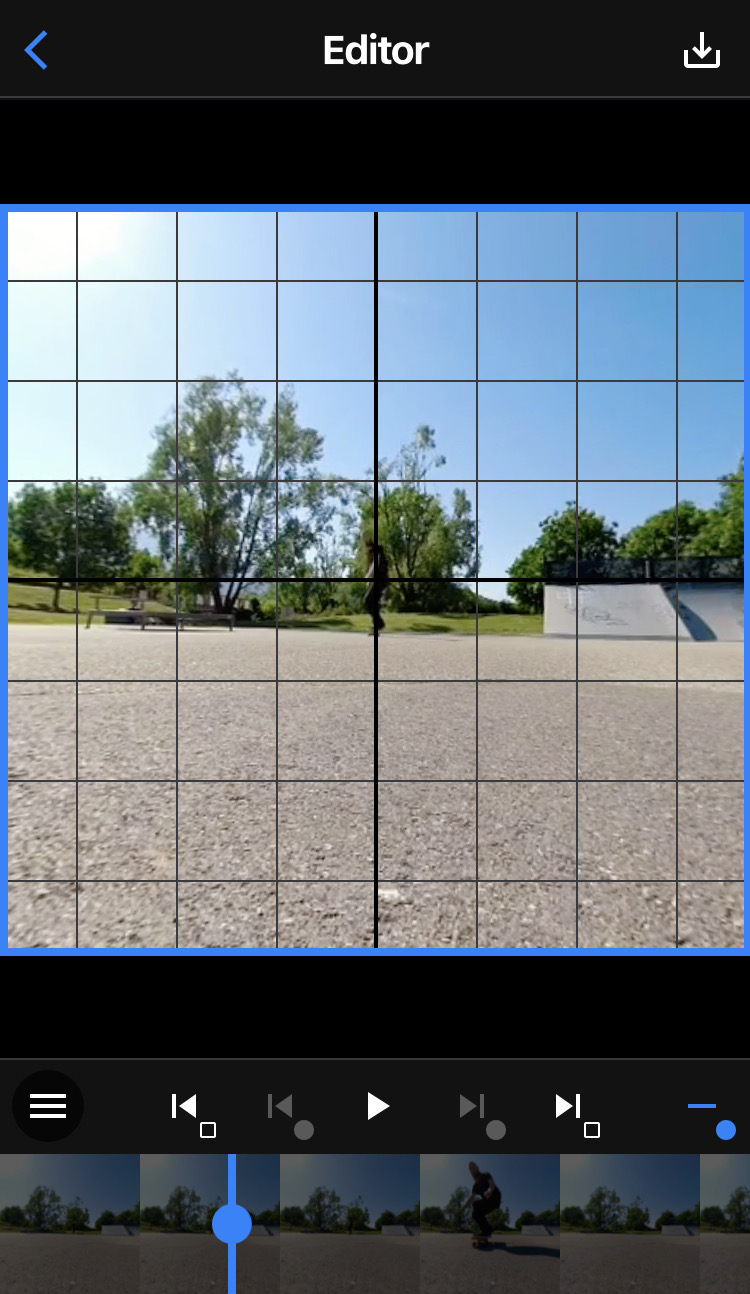
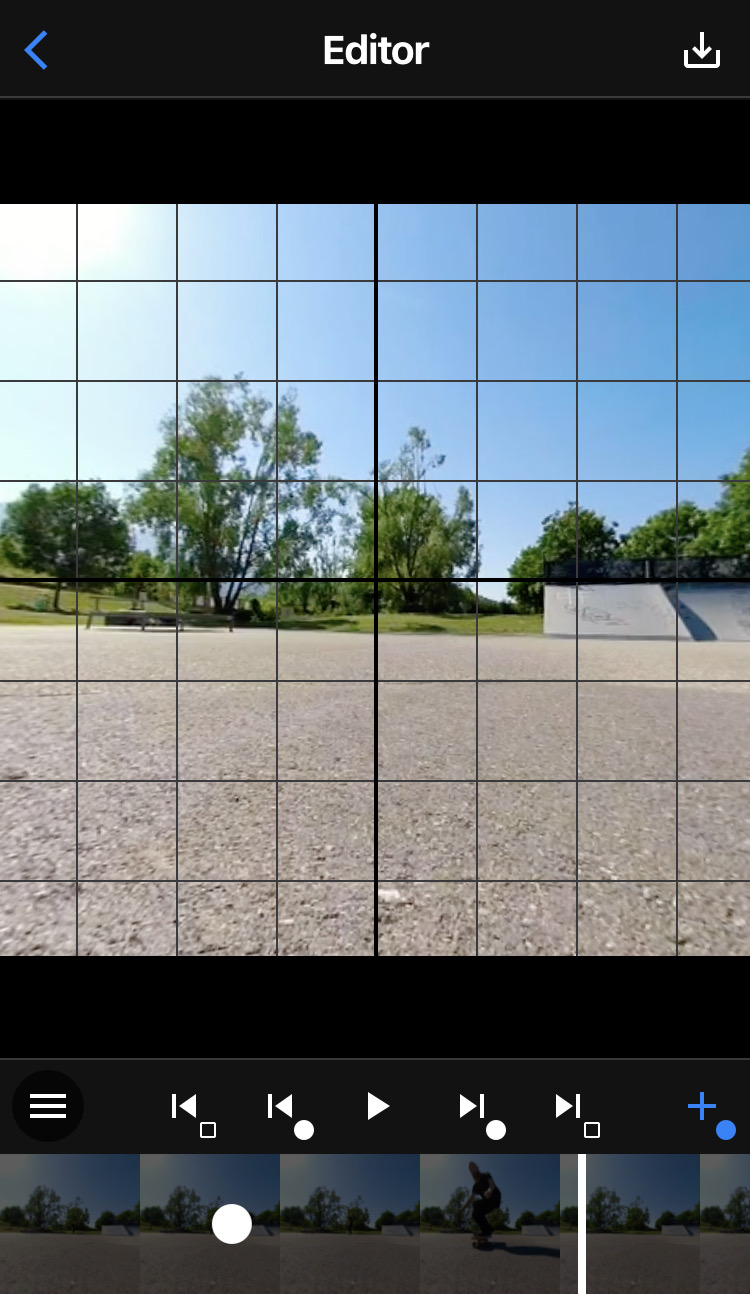
The keyframe appears as a white circle in the timeline.
The keyframe appears as a blue circle when you are editing the keyframe, also the current time bar and the live preview border become blue.
Edit the keyframe by changing camera parameters, you can either touch and drag the live preview or go to Tuning screen for precise control.
You can use previous/next keyframe buttons to jump between keyframes or you can tap on the keyframe white circle to jump on it.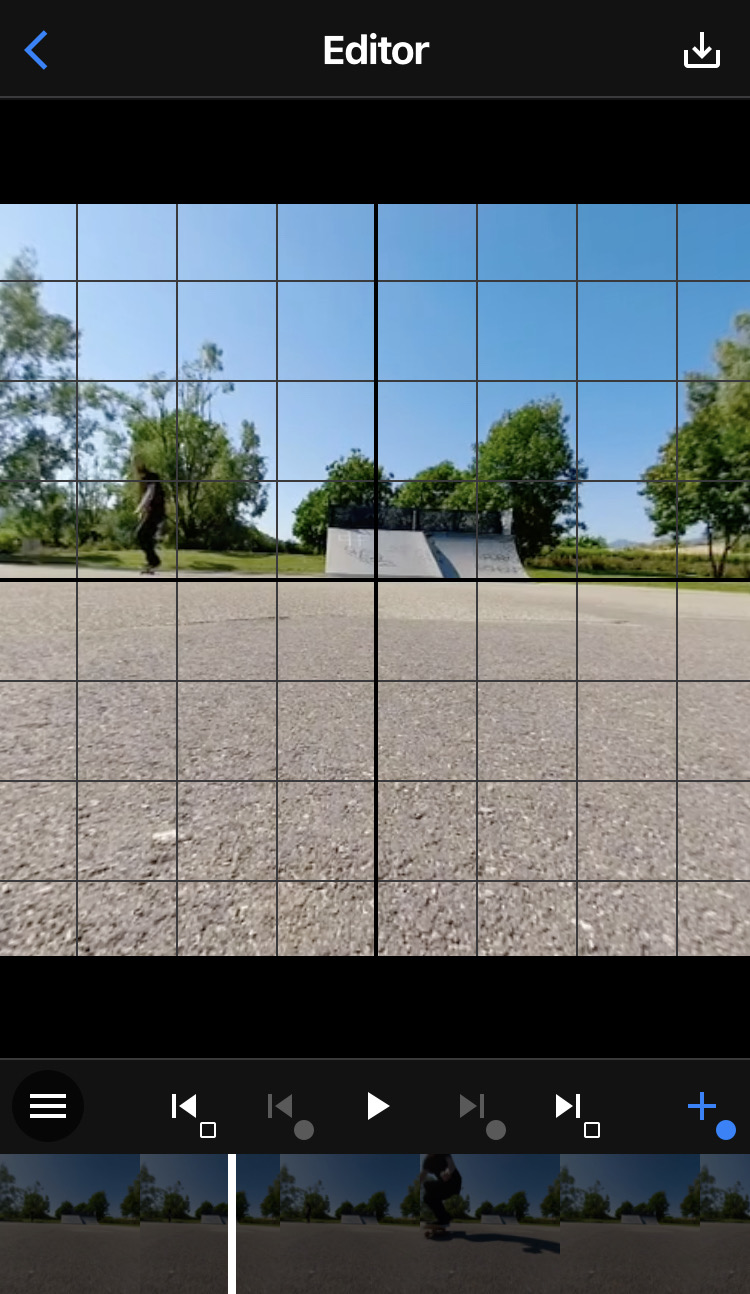
Transitions
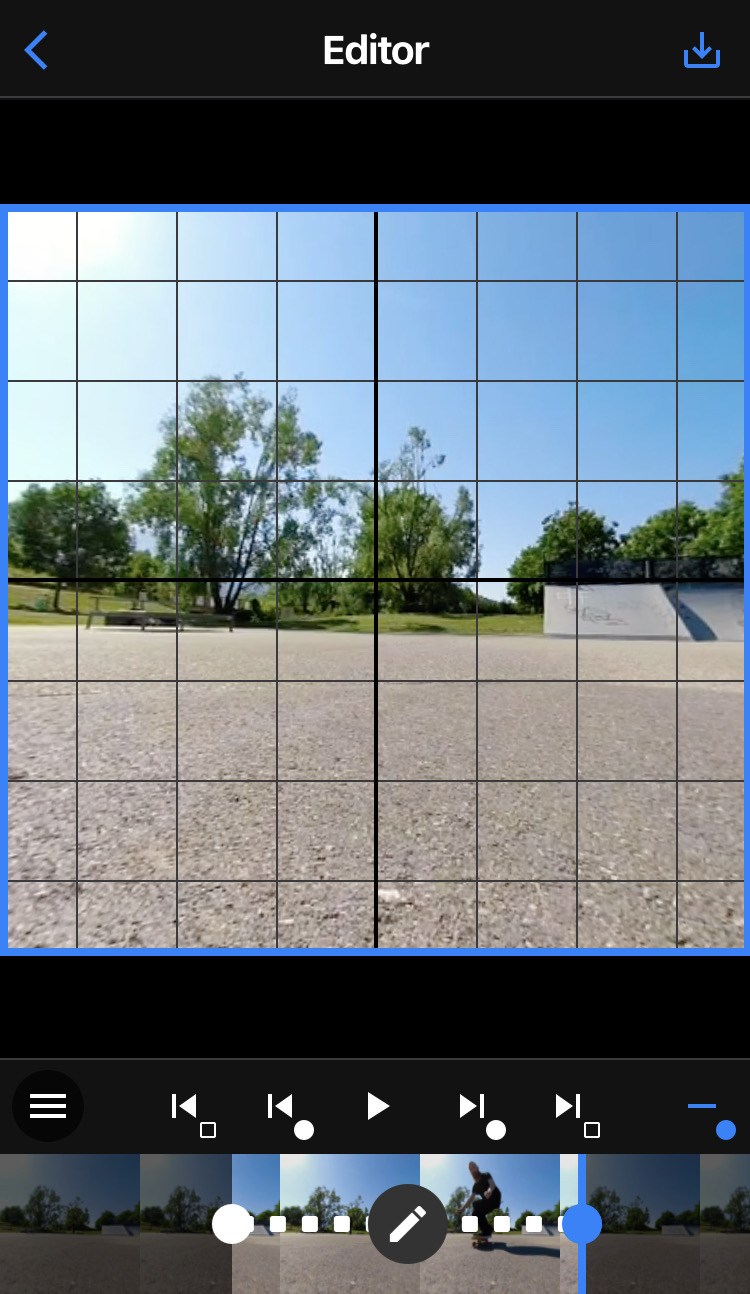
Edit how camera transition is made between 2 keyframes with the edit button in the timeline.
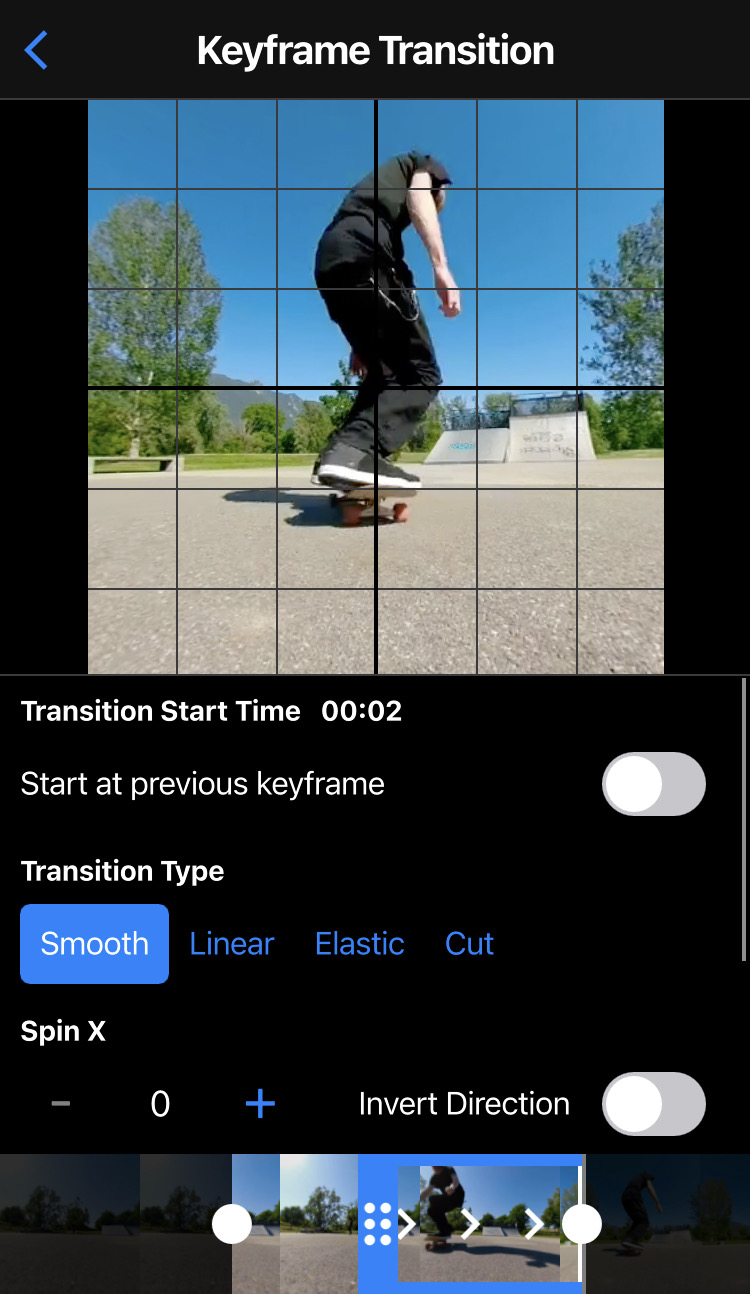
Choose if the transition starts immediately at previous keyframe or if the transition starts after a delay. Drag the blue landmark in the timeline to set when the transition starts.
Set the transition type within the 4 possible values : Smooth, Linear, Elastic, Cut (no transition).
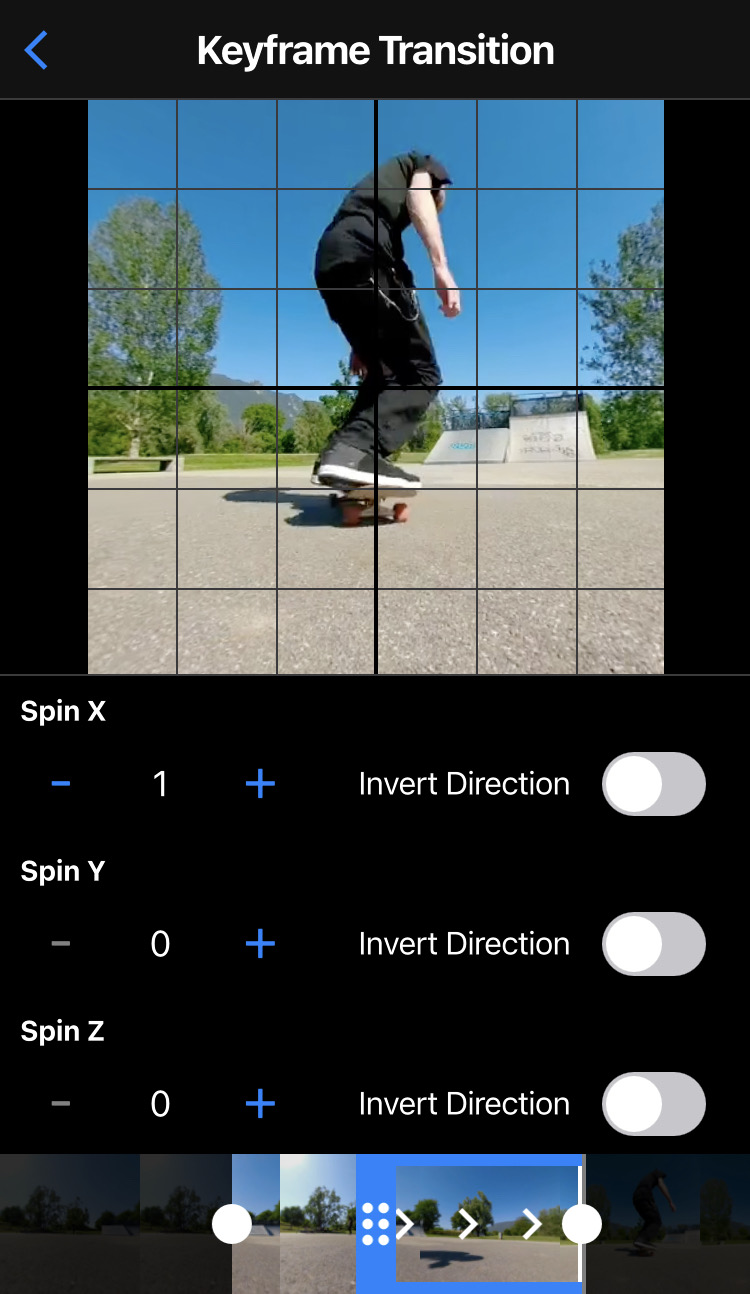
You can add a camera spin in the transition. Choose on which axis you want to make the spin. Set how many spins you want. You can also invert the spin direction.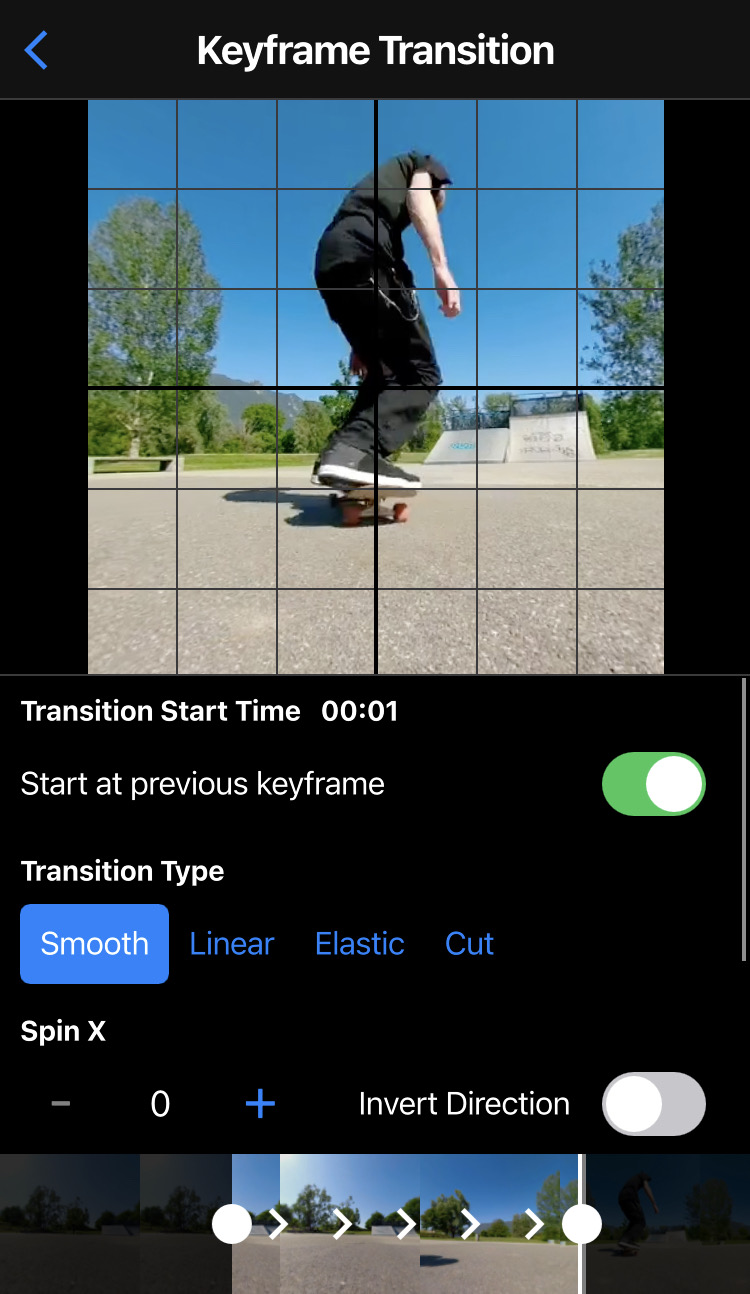
Tuning
The tuning screen is accessible through the menu.
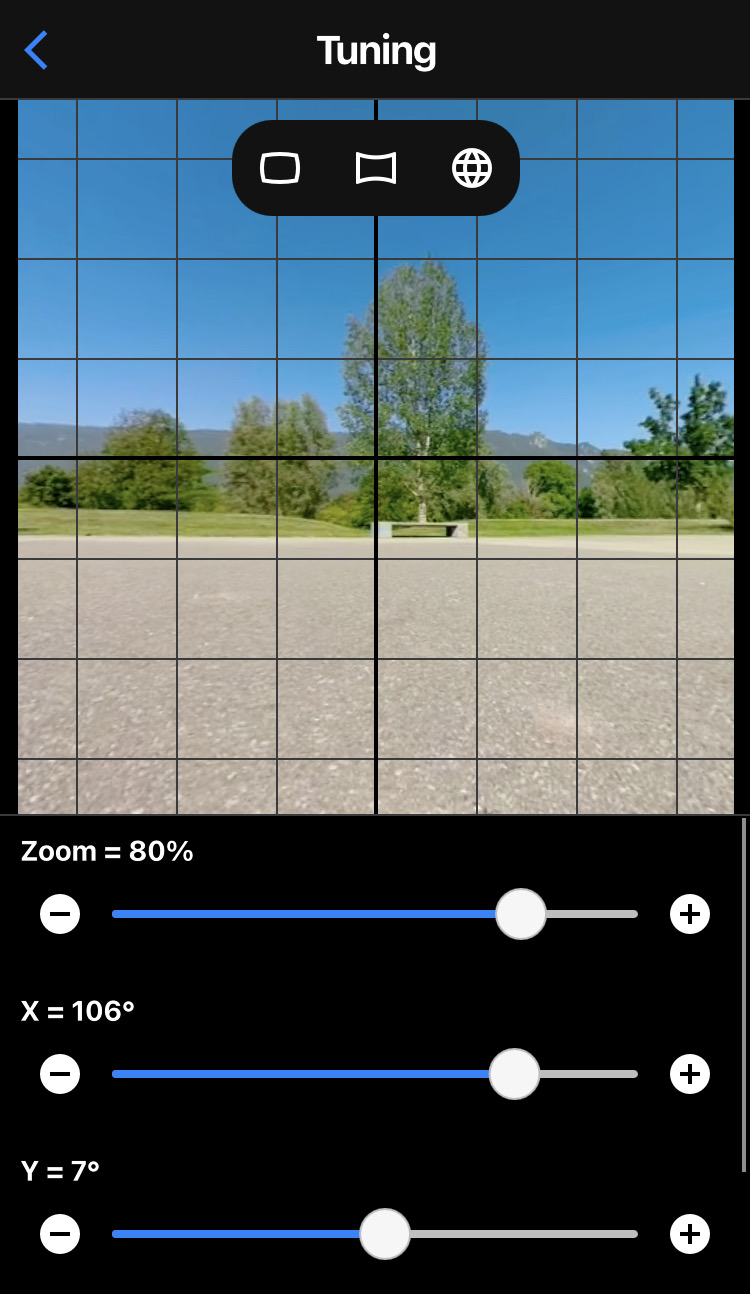
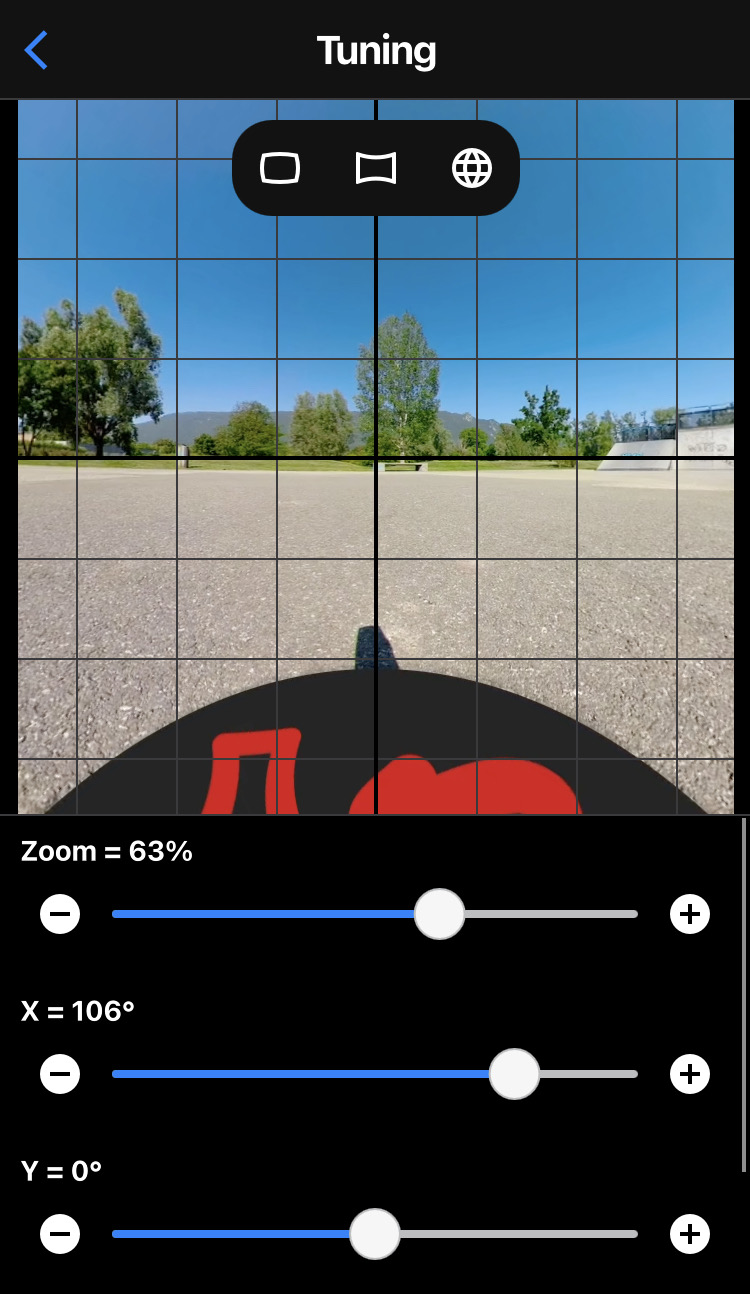
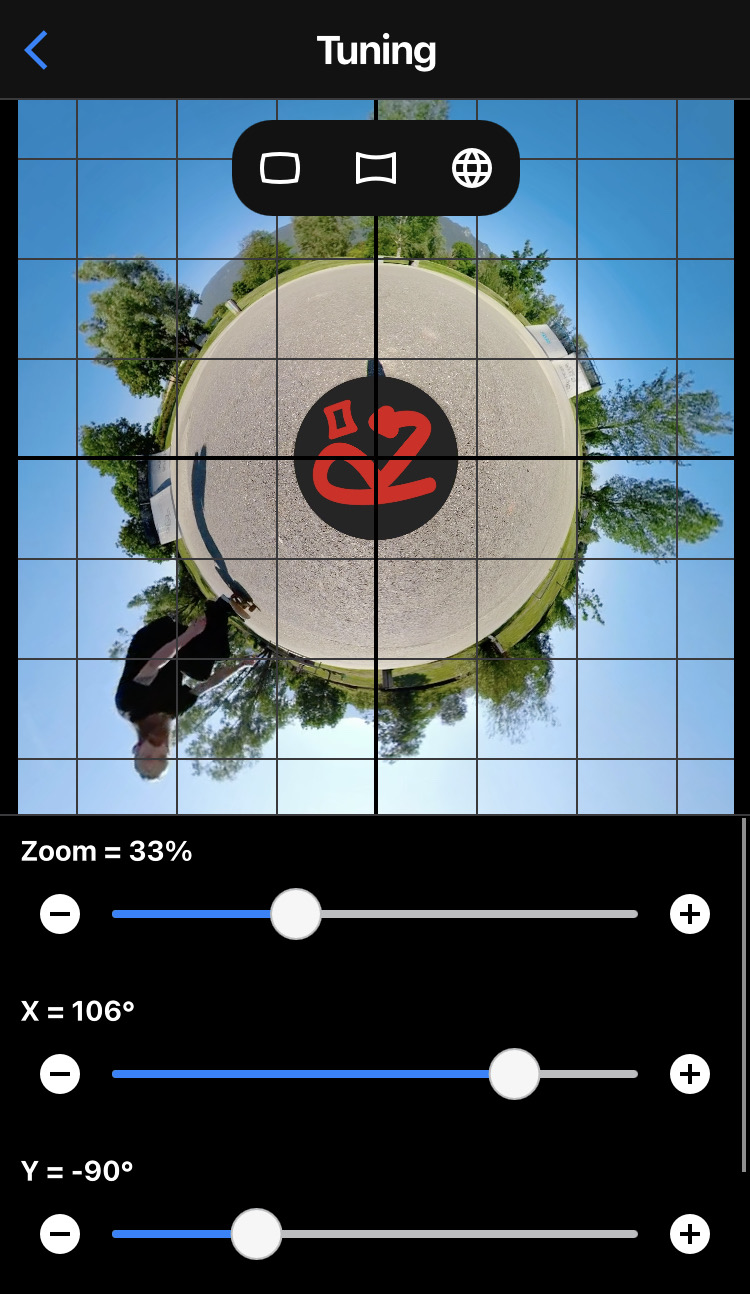
Use sliders to change camera parameters : Zoom, X, Y, Z.
Buttons – and + allow to set more precisely the value.
Buttons on the top of the live preview are shortcuts to automatically set camera parameters : Normal, Wide Angle, Little Planet.